About this app
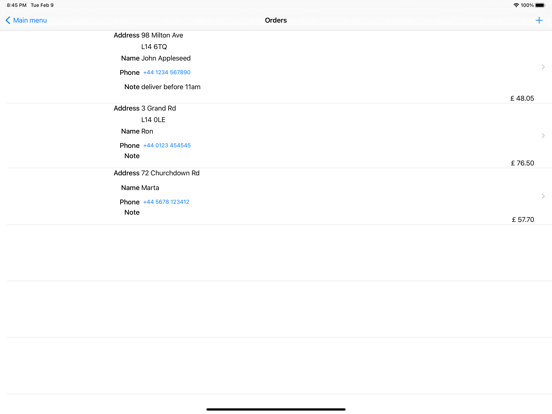
Essential functions: sales, delivery orders, customers, warehouse management, cash management, reporting. It is a POS designed for sales both in shop and delivering orders to your customers. This is a completely standalone solution. You do not need a back office. It does not require the Internet connection to work. All data are located on your device. With POS, you can set up your goods, taxes (VAT, GST, etc.), methods of payment, users, and discounts directly on your iPhone or iPad. POS tracks the work shifts and days. At the end of day, the application sends sales reports by email (if configured). The application keeps sales data from all previous days and shifts. POS allows tracking the remaining quantities of goods on stock. Important note: before to start sales, it is strongly recommended to go through the following steps: 1. Configure goods, taxes, departments, methods of payments (Cash, Credit cards etc.), discounts, users. 2. Define app settings: such as taxation type (tax-exclusive, tax-inclusive, or no taxes), currency symbol, switch on/off stock control, switch on/off user authorisation, define email for reports sent at the end of day, and choose a camera to scan barcodes. 3. If the stock control option is switched on (see above), take inventory of your goods. POS has the following features: - Adding goods to a sales receipt by simply choosing items from a list, entering the item's code, or by scanning its barcode with phone's camera - Entering the quantity before adding an item to a sales receipt - Using fractional numbers for quantities - Setting up your goods, payments, departments, taxes, users, and discounts - Setting up sales item only for storing on stock, only for selling, or for both storing and selling - Setting up combo items along with an option to set the quantity of ingredients - Defining the price of goods at sale if they are set up to allow so. - Printing of item label with description, price etc - Voiding lines added by mistake - Refunds - Shop Departments (like Food, Drinks, Bakery, Sweets etc.) - Printing of sales and refund receipts - Viewing the history of sales (by shift, by day, for the given period) - Payment for a sales receipt by using more than one method of payment (just enter the payment amount before choosing a method of payment) - Flexible management of user rights - Using work shifts and work days - Setting up the user authorisation to be required or not required: if there is only one user of POS on your device, you might not need the user authorisation. Important note: before turning on the user authorisation, make sure that you remember the administrator password - Cash Management (Pay In, Pay Out, Safe Drop, etc.) - Showing the remaining quantities of goods on the stock - Taking inventory - Receiving and shipping - Launching of the "end of day" procedure manually - Sending the "end of day" report to an email address, or to a group of recipients. The report includes goods sales/refunds, methods of payments, the remaining quantity of goods on stock, inventories as well as information about shipping and receiving of goods. The report shows data for all work shifts of the day - Keeping the results of closed shifts and days for you to check them later Working with Delivery POS, you should consider the following: The sales occur in shifts. Each item has several options for storage: - *stored only* for the items which are not sold directly (sugar in a cup coffee) - *sold only* but never stored on stock (like a cup of coffee or a sandwich) - *stored and sold* (like a pack of coffee beans in your coffee shop) It is possible to manage your items on stock by using stock operations: - Use the Receiving function to increase the quantities on stock. - Use the Shipping function for cases when you need to decrease the quantity on stock. - Set the actual available quantity of stored items manually by taking inventory with the Inventory function.
Latest release
What’s New
minor improvements
Audience growth
Ratings growth
Baseline captured. Growth appears after the crawler observes a changed rating count.
Momentum comes from crawler snapshots for the tracked storefront. “Viral growth signal” means unusually fast recent rating gains; it is an indicator, not download data.
Price tracking
Price intelligence
First snapshot captured. The trend line starts after the next crawler price observation.
- First observed Aug 19, 2026 · 12:52 PM Free
Screenshots