About this app
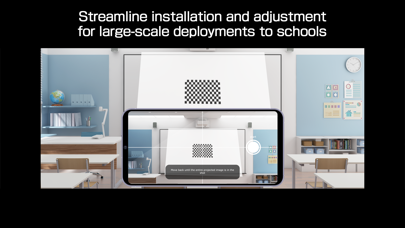
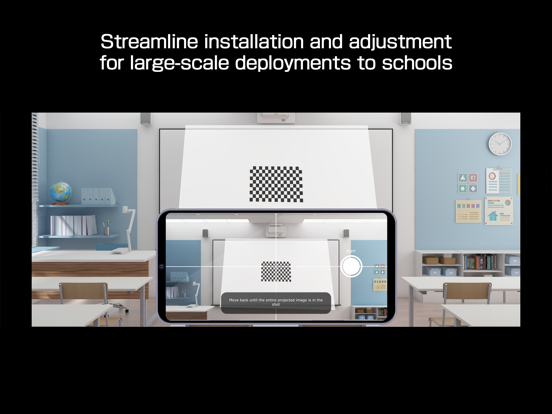
Epson Setting Assistant is an app that automatically corrects the shape of a projected image by using your camera. By taking a shot of the projected pattern, the app automatically corrects distortion in the projected image and adjusts its shape to match the screen. [Main Features] 1) Shape correction The app adjusts the image to a rectangular shape or aligns it with a frame, such as a projector screen. 2) Unevenness correction The app detects small surface irregularities, such as on a wall, and corrects distortion in the projected image. [For Home Projector (EH Series) Users: Using the App] Make sure your iPhone®, iPad®, or iPod® touch and the projector are connected to the same network. 1. Select [Installation] ([Installation] > [Geometry Correction Wizard]) from the projector's menu. 2. Open this app on your iPhone®, iPad®, or iPod® touch and select [Home] as the projector type to automatically connect to the projector. 3. Follow the on-screen instructions to take a shot of the projected pattern using the camera in the app, and the corrections will be completed automatically. [For Business Projector (EB Series) Users: Using the App] Make sure the [Wireless LAN Power] setting is set to [On] in the projector‘s [Management] menu. 1. Select [Installation] > [Connect to Setting Assistant] from the projector's menu to project a QR code. 2. Open this app on your iPhone®, iPad®, or iPod® touch, select [Business] as the projector's type, and then scan the QR code to automatically connect to the projector. 3. Follow the on-screen instructions to take a shot of the projected pattern using the camera in the app, and the corrections will be completed automatically. [Supported Projectors] Visit https://support.epson.net/projector_appinfo/setting_assistant/en/ for details. Depending on your projector model, some features may not be available. [Notes for use] Depending on your environment, such as a curved projection surface or wallpaper with rough textures or patterns, automatic correction using the app may not be available. In these situations, please correct the image shape from the projector's menu. Depending on your smartphone/tablet, the Wi-Fi settings may prevent you from temporarily connecting to the projector. Turn your Wi-Fi off and then on again and try again. For detailed important points, visit https://download2.ebz.epson.net/sec_pubs_visual/apps/setting_assistant/210/EN/index.html. You can also check these from the [Online support guide] in the menu at the top right of the app. Images used here are for illustrative purposes only. The actual images may differ. [App Permissions] To use the app, the following permissions are required. [Required] Local Network For searching and connecting to the projector. [Required] Camera For capturing correction patterns or QR codes for connection. * Optional permissions can be declined, but some features may not work.
Latest release
What’s New
Added supported projectors
Audience growth
Ratings growth
Baseline captured. Growth appears after the crawler observes a changed rating count.
Momentum comes from crawler snapshots for the tracked storefront. “Viral growth signal” means unusually fast recent rating gains; it is an indicator, not download data.
Price tracking
Price intelligence
- First observed Aug 10, 2026 · 6:07 PM Free
Screenshots