About this app
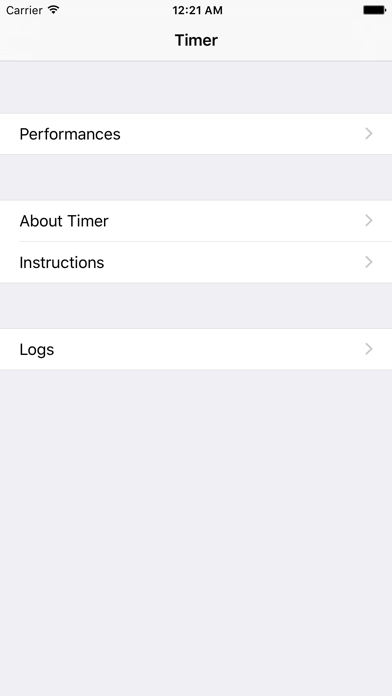
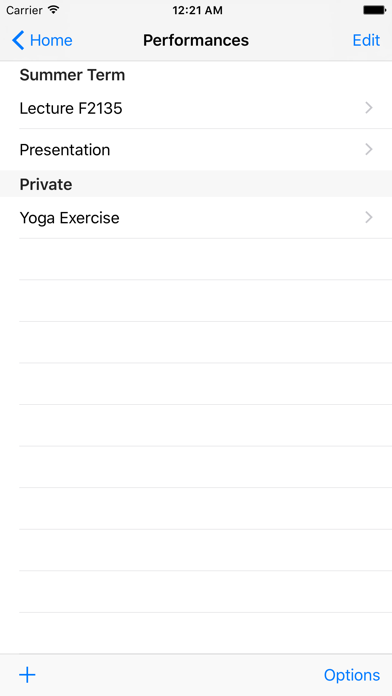
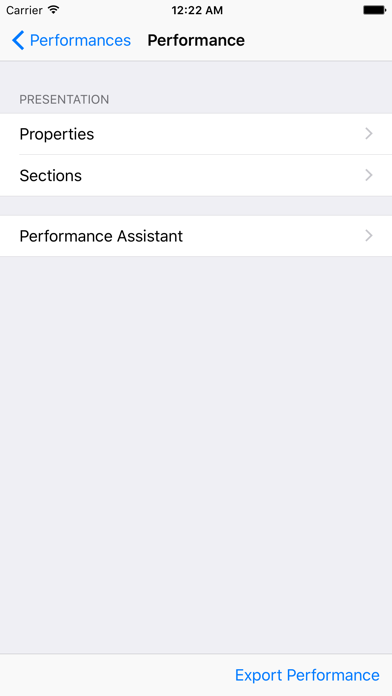
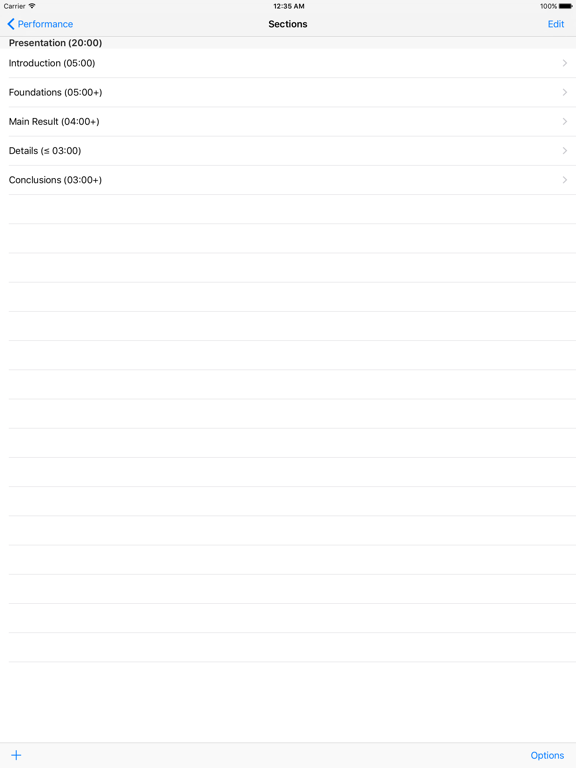
The 'Timer with Sections' supports you during your performance (e.g., a talk or keynote speech, a seminar or lecture, a workout) by providing intuitively visualized timing information. It allows you to structure time into 'sections'. [ Demo video available at: http://tinyurl.com/iphonetimer ] During your performance, you can easily adjust the schedule by moving time across sections, with a swipe gesture (e.g., when feedback from the audience requires you to skip or intensify a section of your performance) or by pressing the pause button (e.g., when answering a question from the audience requires some extra time). Features: Structuring a Performance: Available time can be divided into sections. Visualization of Time: The performance assistant view intuitively visualizes the remaining and elapsed time, both for the current section and the whole performance. Elapsed time is depicted in red, remaining time in green. An inner disc represents the used and remaining time for the current section. The section title is displayed in the center. An outer ring represents the used and remaining time for the whole performance. The segments of the ring represent the individual sections. Paused time (see below on the concept of pause) will is depicted in dark red. Extra time obtained by skipping parts of a section (see below on the concept of skipping) will be depicted in dark green. Alarm Option: Optionally, you can set an alarm at the end of each section. If set a short tick sound will signal the end of a section. Note: The iPhone will vibrate if you have configured "vibrate" in its sound setup. Managing Time during a Performance: Except for the stop-button you cannot interrupt, pause, extend or shorten a running performance. However, there are advanced possibilities to flexibly adjust the length of a section during a running performance, by moving time among sections. For example, your performance could have a section containing additional results which you might want to shorten or skip in favour of extending another section. There are three ways of altering the planned schedule during a running performance: * Pausing: Holding time for the current section, by shortening a later one. * Skipping: Skipping remaining time of the current section, by extending a later section. * Resetting: Setting elapsed time to zero for the current section, by shortening a later section. Leaving the Application: If you leave the performance assistant view or even the application, then the timer continues to count down. If you return to the performance assistant view, it will recover its previous state, including the elapsed time. If the performance assistant view is interrupted by pressing the home button or an incoming call, then a running performance is automatically switched to 'pause'. Logging a Finished Performance: Upon finishing a performance, you are asked if you like to log that performance. If you log the performance, then data as the actual time run or skipped is stored for each section. This allows you to analyse your performance and hence adjust and improve your schedule. A log of a performance can be viewed at any later time. It can be exported via email. Tips: Rehearsal: If you are creating a new performance, you should use Performance Assistant in a rehearsal. Then analysing your time requirements by checking the log file. Buffer Time: Consider adding a shrinkable section with optional topics or just a general discussion sections towards the end of your performance such that it can serve as a buffer. Note that you can pause a section only if such a buffer exits.
Latest release
What’s New
New features: Version 8.0: Automatic restart / repeat of a timer. Automatic logging.
Audience growth
Ratings growth
Baseline captured. Growth appears after the crawler observes a changed rating count.
Momentum comes from crawler snapshots for the tracked storefront. “Viral growth signal” means unusually fast recent rating gains; it is an indicator, not download data.
Price tracking
Price intelligence
First snapshot captured. The trend line starts after the next crawler price observation.
- First observed Aug 23, 2026 · 2:13 PM $1.99
Screenshots