About this app
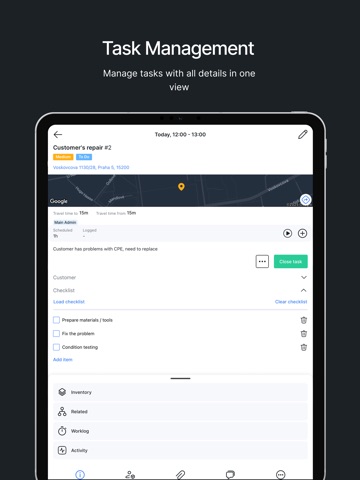
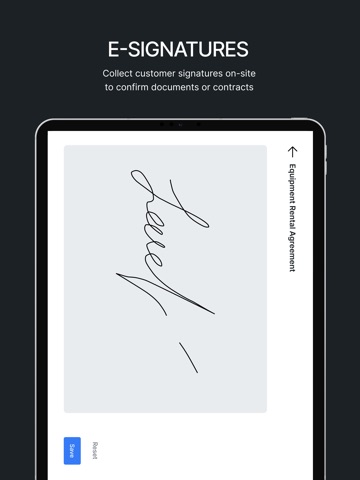
Splynx Field Service helps ISP technicians manage tasks, document work, navigate to customer sites, and handle equipment in a fast and reliable way. Designed specifically for field teams, it brings essential job information and tools into one simple mobile app. TASK MANAGEMENT Create and manage tasks with priority, description, checklists, comments, and worklogs. Access personal and team tasks based on permissions, and add subtasks, related tasks, or linked tickets when needed. CUSTOMER DETAILS See key customer information such as contact details and service address, ensuring technicians are fully prepared before arriving on-site. CALENDAR VIEW View all tasks in a structured calendar and apply timeframe, customer, or project filters to better organise your schedule and plan your day. MAP & NAVIGATION Easily locate tasks on the map and open directions in the device’s preferred navigation app with a single tap. ON-SITE REPORTING Capture photos, upload documents, and add notes directly to the task to provide accurate job records. E-SIGNATURES Collect customer signatures on-site to confirm work completion or document approvals. EQUIPMENT HANDLING Assign, rent, or sell equipment directly within the task. The built-in barcode scanner ensures quick and accurate process. OFFLINE MODE Continue working without an internet connection. All updates sync automatically when the device comes back online. NOTIFICATIONS Receive alerts for new tasks, comments, and upcoming job reminders to stay updated throughout the day. Splynx Field Service App is available exclusively for Service Providers using Splynx software.
Latest release
What’s New
· Added Network Site support for Splynx 6.0: view a task's site info, documents, inventory and photos. · Added Spanish language. · Changing task coordinates now offers to update the customer's coordinates too. · Task ID now shows before the task title. · Fixed document signing. · Fixed the keyboard not closing when saving long work-log comments. · Fixed placeholders not showing real data when creating or editing a task.
Audience growth
Ratings growth
Baseline captured. Growth appears after the crawler observes a changed rating count.
Momentum comes from crawler snapshots for the tracked storefront. “Viral growth signal” means unusually fast recent rating gains; it is an indicator, not download data.
Price tracking
Price intelligence
First snapshot captured. The trend line starts after the next crawler price observation.
- First observed Aug 19, 2026 · 6:08 AM Free
Screenshots