About this app
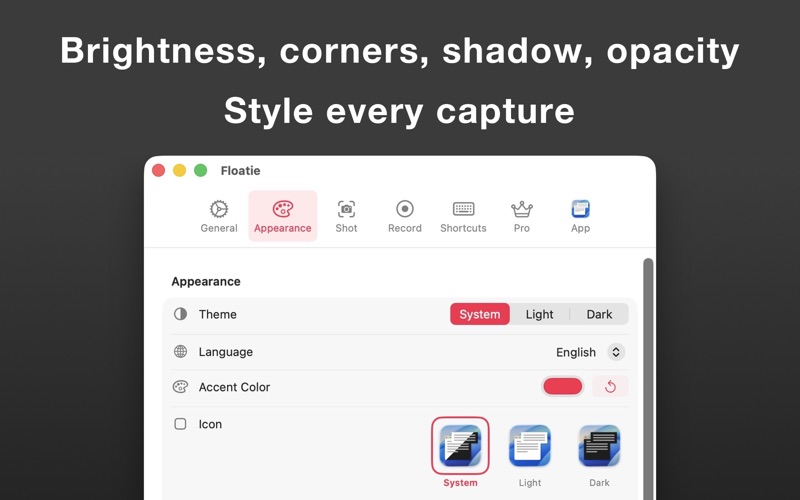
Snip part of your screen, mark it up, and paste it — without the shot ever becoming a file you have to manage. Floatie is a macOS menu bar tool that lifts every capture into a floating panel right where you drew it, so editing and pasting happen on the spot. What makes it different? Most screenshot tools end at "capture, save, done" — and that's where the real work starts: find the file, open an editor, mark it up, export it, attach it. Floatie collapses that into one motion. Draw an arrow, mosaic the email address, then press ⌘C and paste straight into Slack, Notion, or a doc — or drag the panel into Finder and drop it as a PNG. No save dialog, no editor to open, no export step. Capture what you need: • Region — ⌘⇧2 to draw any part of your screen. ESC cancels anytime. • Window — ⌃⌥2 to grab a single window cleanly, with or without its shadow. • Full screen — ⌘⇧1 for the whole display. A 5× magnifier snaps you to pixel-perfect edges as you select. Edit on the spot (⌘E): Pen, lines, arrows, rectangles, auto-numbered callouts, text, and mosaic (blur or pixelize). Point with an arrow, cover a password before you send it, number your tutorial steps. Insert an external image, adjust the corner radius, and crop — all without leaving the panel, in six colors with adjustable stroke and undo. Copy it, or drag it out: ⌘C puts the image on the clipboard, ready to paste anywhere. Or pull the panel into Finder, Slack, Discord, or Mail and drop it as a PNG — hover for a second and the source panel fades away, so the drop reads clean. When you want a file, ⌘⇧S saves one. It stays where you put it: Each capture rises into a floating panel with a soft shadow, and multiple shots cascade instead of stacking. Hold ⌥ while dragging to reposition a panel, ⌃⌥P keeps one above everything, and scrolling the wheel over a shot fades its opacity — handy for tracing or comparing. Also included: • Grab the text inside (⌘O) — freeze a shot and its text becomes selectable. Drag through the words and they land on your clipboard; ⌘⇧C copies all of it. English, Korean, Japanese, and Chinese (Simplified and Traditional) are recognized on-device through Apple's Vision framework. • Record to MP4 — region ⌥⇧2, window ⌥⇧3, full screen ⌥⇧1. The recording lands in a floating preview you can trim, crop, and blur before you drag it out. • Scrolling capture (⌃⌥3) — stitch a long page, chat, or code file into one tall shot. • History rail (⌘⇧H) — closed shots aren't gone. A side rail holds what you've captured, kept locally so it survives a restart. Click a thumbnail to bring a shot back, or remove it for good. Make it yours: Set brightness, corner radius, shadow, and always-on-top per shot, then "Apply to default" to push that look to every open shot. Pinch to resize, or press 0 / - / = to reset, shrink, or enlarge. Shortcuts, filename format, and the Dock icon are configurable too. Shortcuts (all remappable in Settings): Capture — ⌘⇧2 region · ⌃⌥2 window · ⌃⌥3 scrolling · ⌘⇧1 full screen Record — ⌥⇧2 region · ⌥⇧3 window · ⌥⇧1 full screen On a shot — ⌘E editor · ⌘C copy image · ⌘O freeze for text · ⌘⇧C copy text · ⌘⇧S save as · ⌃⌥P always on top · ⌃⌥F flip · ⌘⇧H history · ⌘⌥2 show/hide all · ⌘⌥W close all · ⌘W or ESC close Pricing: Free to try for 14 days with everything unlocked. After that, a single one-time purchase — Floatie Pro — unlocks the app for good. A lifetime buy, not a subscription: no recurring billing, and it works on all your Macs. Privacy: Floatie runs sandboxed and your captures stay on your Mac. Screenshots, recordings, text recognition, and editing are processed locally — nothing you capture is uploaded, and there is no account to create. Capturing, editing, and OCR keep working with the network off. Built for everyone: The interface ships in over 90 languages, with full VoiceOver support and a keyboard-only capture mode for anyone who doesn't use a pointer. System: macOS 14 Sonoma or later. Apple Silicon and Intel supported.
Latest release
What’s New
• Minor fixes and improvements
Audience growth
Ratings growth
Baseline captured. Growth appears after the crawler observes a changed rating count.
Momentum comes from crawler snapshots for the tracked storefront. “Viral growth signal” means unusually fast recent rating gains; it is an indicator, not download data.
Price tracking
Price intelligence
First snapshot captured. The trend line starts after the next crawler price observation.
- First observed Aug 8, 2026 · 3:18 PM Free
Screenshots