About this app
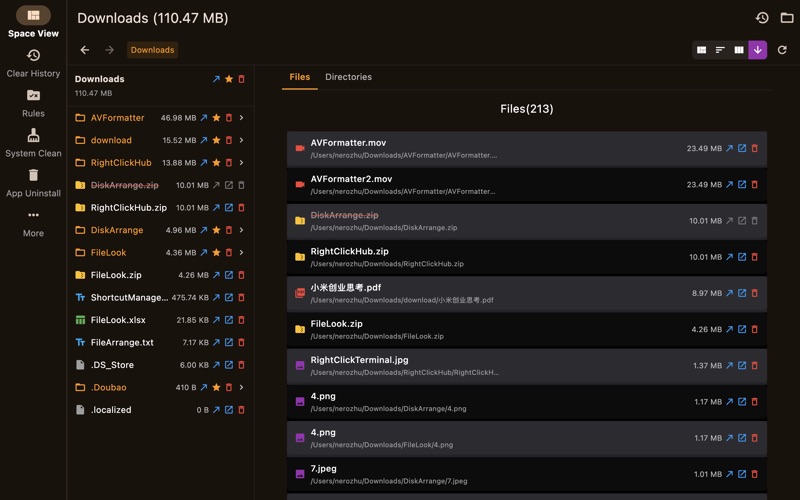
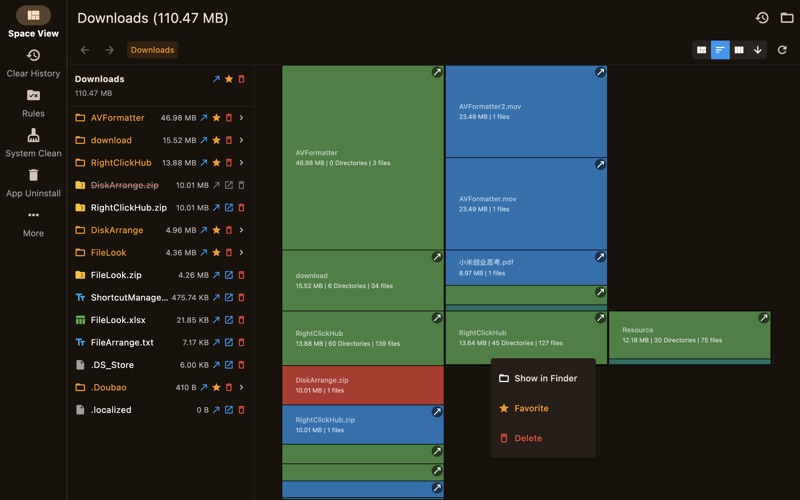
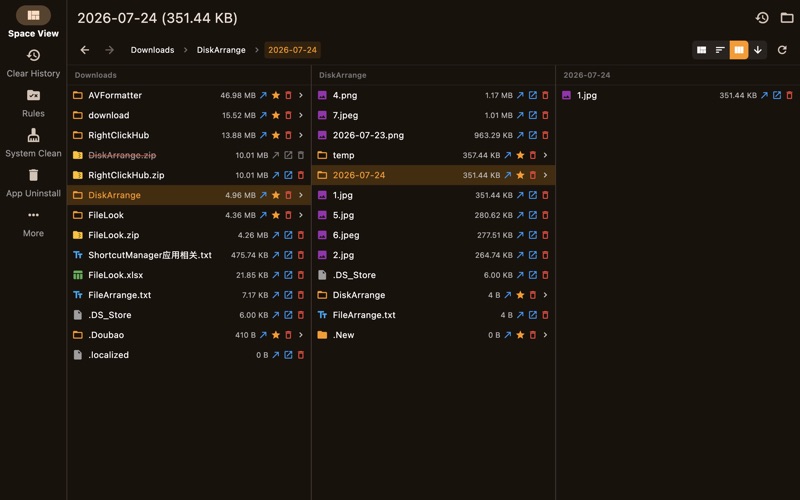
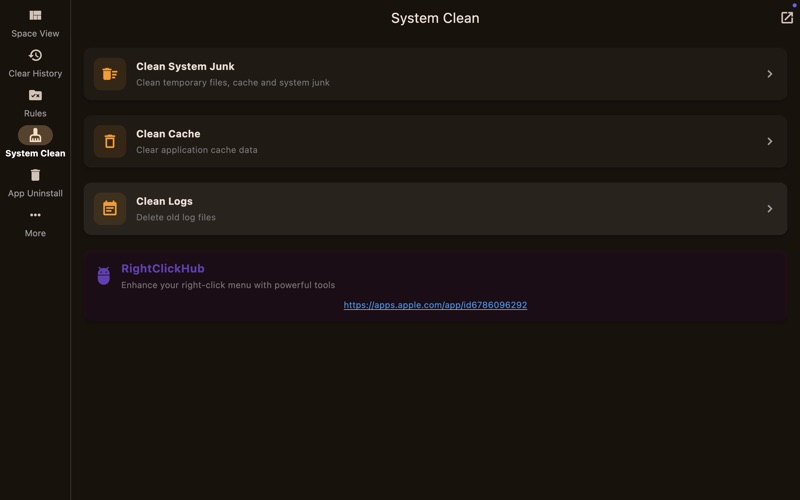
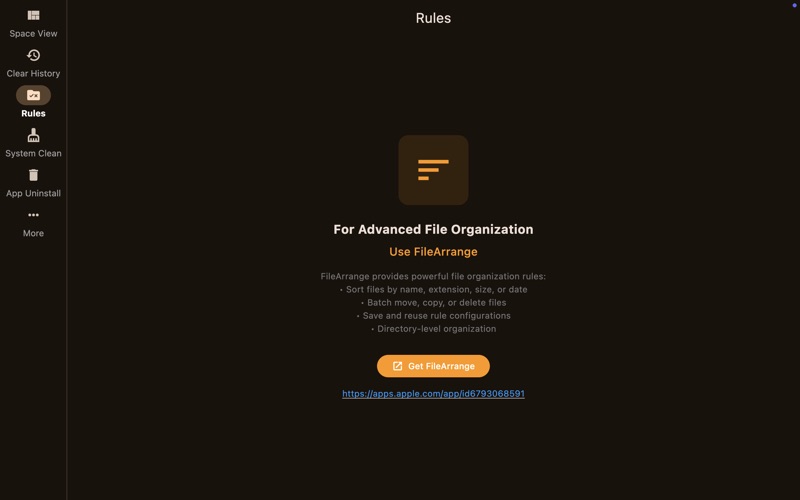
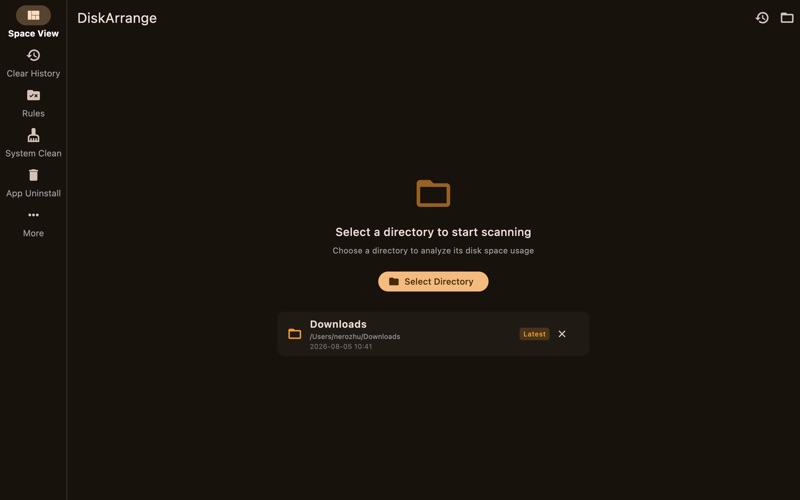
Four-dimensional visualization for comprehensive disk usage scanning, supporting seamless switching between 4 views: Tree Map for global overview, Icicle Plot for hierarchical tracing, Column View for detailed browsing, and List View for capacity sorting. Quickly locate large files to perform file deletion, system cleanup, and junk file cleanup. ● Scan targets with capacity support and reusable history records ‑ Local hard drives ‑ Local folders ‑ Mounted shared directories, iCloud Drive, NAS and other network storage directories with normal access ● Usage visualization for fast file location ‑ Tree Map: Global overview to quickly identify large items. Squares visually represent storage consumption; larger squares mean higher usage. Preview storage capacity of nested directories on a single screen. ‑ Icicle Plot: Hierarchical tracing to efficiently find the source of space consumption. Vertically displays directory hierarchy with horizontally expanded subdirectories for instant insight into the overall structure of large directories. ‑ Column View: Three-column detailed browsing for precise file search. Files are sorted by capacity in descending order, showing directory structure clearly. Supports forward, backward and step-by-step navigation for file browsing. ‑ List View: Capacity sorting, showing all files and directories sorted from largest to smallest by space usage. ‑ Info Panel: Displays sorted file list (descending by size) under selected or aggregated directories. View size, modification date and full path of selected items; supports path copying and item deletion. ‑ Cleanup History: Records up to 1000 recent file deletion entries and shows total cleaned size. Enables quick review of operation history; reveal the parent folder of deleted items in Finder, or add folders to scan history. ● Operation toolkit for fast file cleanup ‑ Double-click a file/directory or click the top-right arrow icon to open and automatically select the target in the system file manager. ‑ Click the embedded arrow icon inside blocks to open files directly with the system default application. ‑ Click directories to expand their internal contents. ‑ Click files to load detailed information on the info panel. ‑ Click aggregated directories; the info panel displays aggregated files beyond the visible range. ‑ Click the red trash button to delete files, directories or scan history records after confirmation. ‑ Click the yellow star button to add a directory or its parent directory for future scans. ‑ Right-click files/directories in all views and lists to access context menu actions: reveal and select target in system file manager, open with system default app, add to scan history, delete. ● Path navigation ‑ Forward and backward navigation buttons: Retain browsing positions at any time to improve disk browsing efficiency. ‑ Path breadcrumb navigation: Click any path node to jump directly to that level. ‑ System junk cleanup ‑ System Cleanup: One-click junk file removal. ‑ Recommended with RightClickHub: Remove app residuals; access hundreds of quick actions via hotkeys, menu bar, launch center and right-click menus. ‑ Recommended with FileArrange: Locate and batch process scattered files and folders rapidly. File search supports combined filtering across 15 dimensions; folder search offers 63 dimension combinations with multiple matching modes and numeric operators. Customize thousands of search rules; built-in advanced search compatible with regular expressions for special naming scenarios. All-in-one for file classification, batch maintenance, redundant cleanup and disk space reclamation.
Latest release
What’s New
New: Space View now allows you to add directories to your scan history for quick access. Deleted files are now logged in a new scan history interface, displaying the total deleted capacity. You can also open and favorite the parent directory of any deleted file.
Audience growth
Ratings growth
Baseline captured. Growth appears after the crawler observes a changed rating count.
Momentum comes from crawler snapshots for the tracked storefront. “Viral growth signal” means unusually fast recent rating gains; it is an indicator, not download data.
Price tracking
Price intelligence
First snapshot captured. The trend line starts after the next crawler price observation.
- First observed Sep 30, 2026 · 1:53 PM $0.29
Screenshots