About this app
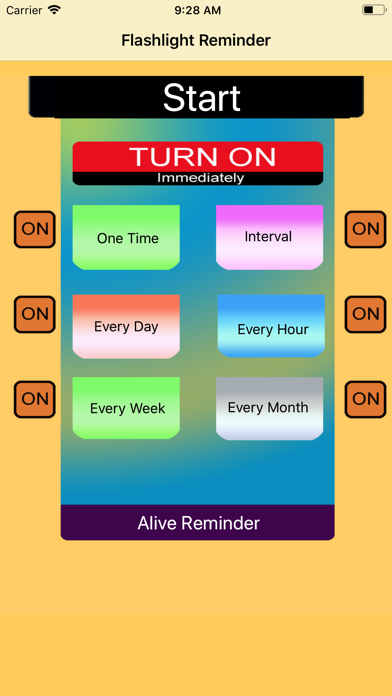
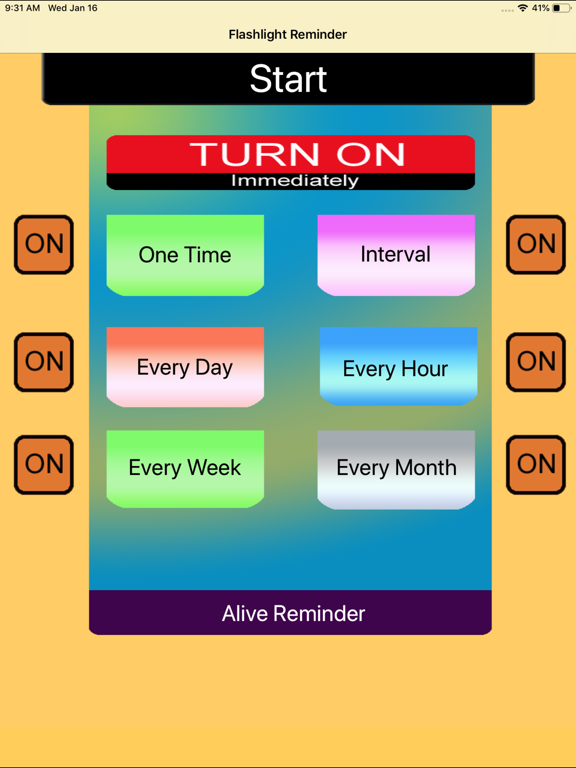
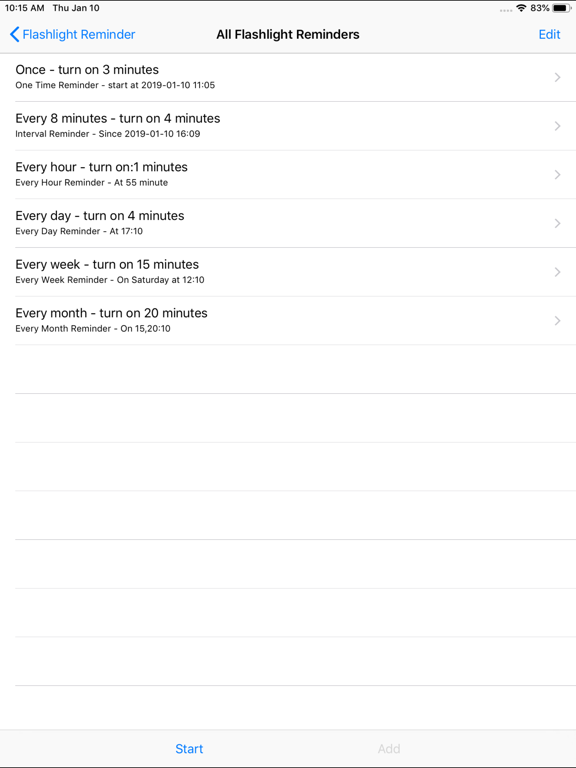
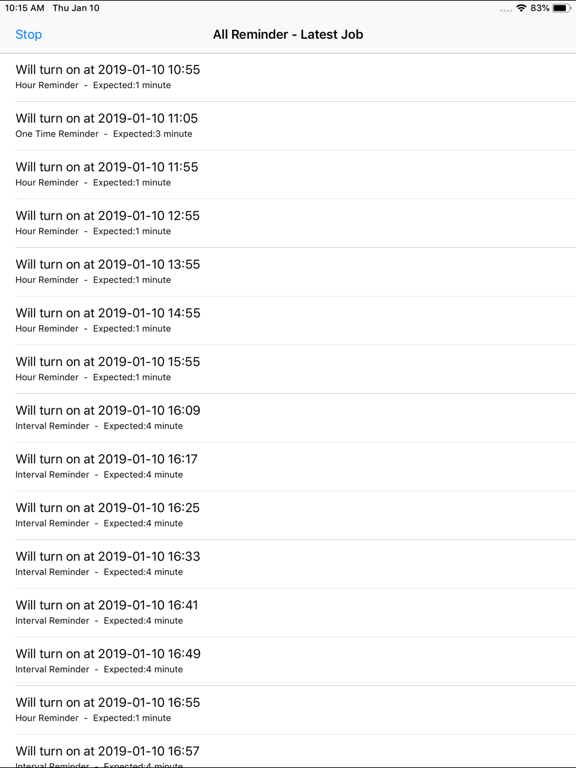
Turn on the flashlight at the indicted time. At night, use this app to help ourself see the remote view. At night, tell remote friends what we want to do and what they need to do. Only for iPhone. The app has the same usage as the following app: talking reminder: talk the text at the indicted time sound reminder:play music file or talk text at the indicted time camera capture event: record video or take photo at the indicted time sound record event:record the sound at the indicted time Introduction Flashlight Reminder could turn on the Flashlight at the indicted time and turn off the flashlight after the indicted duration.The time is indicted by six kinds of different event schedulers.They are called One Time Reminder, Interval Reminder, One Hour Reminder,One Day Reminder,One Week Reminder and One Month Reminder. Features 1.Turn on the flashlight by One time reminder. 2 turn on the flashlight by interval reminder. 3 Turn on the flashlight by every hour reminder. 4 Turn on the flashlight by every day reminder 5. Turn on the flashlight by every week reminder. 6 Turn on the flashlight by every month reminder. 7 Turn off the flashlight after the indicted duration. Usage When we use the app for the first time, the database is empty. So we need add the reminder recorder. Tap any event button, we could begin to add new reminder record. Then , return back to the main view, tap the Alive Reminder button, we could check whether our input is correct. After that, back to the main view. tap the start button. Example Add Every Hour Event From the main view, tap the every hour reminder button, then the every hour event list view will be displayed. Then tap the add button at the bottom tool bar. So new record view will be displayed. Select the start time and the duration. Finally, tap the save button. The new every hour event record will be displayed in the list. Example: Add Every Week Reminder From the main view, tap the every week reminder button, then the every week reminder list view will be displayed. Then tap the add button at the bottom tool bar. So new record view will be displayed. Select the start time and the duration.Finally, tap the save button. The new every week record will be displayed in the list. Notice: For the current edition, this app is only foreground app. When the job list is displayed, the app must be in the foreground status and cannot press the home key at this time.
Latest release
What’s New
Improve the performance of the interval reminder. For the interval reminder job, in the job list, all of the jobs in the 48 hours will be displayed in the list. in the earlier edition, only jobs in the 24 hours will be displayed.
Audience growth
Ratings growth
Baseline captured. Growth appears after the crawler observes a changed rating count.
Momentum comes from crawler snapshots for the tracked storefront. “Viral growth signal” means unusually fast recent rating gains; it is an indicator, not download data.
Price tracking
Price intelligence
First snapshot captured. The trend line starts after the next crawler price observation.
- First observed Aug 20, 2026 · 10:56 PM Free
Screenshots