About this app
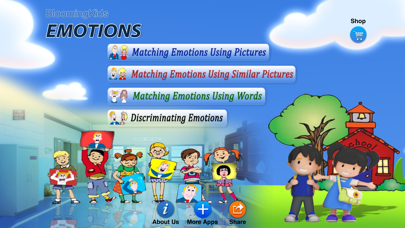
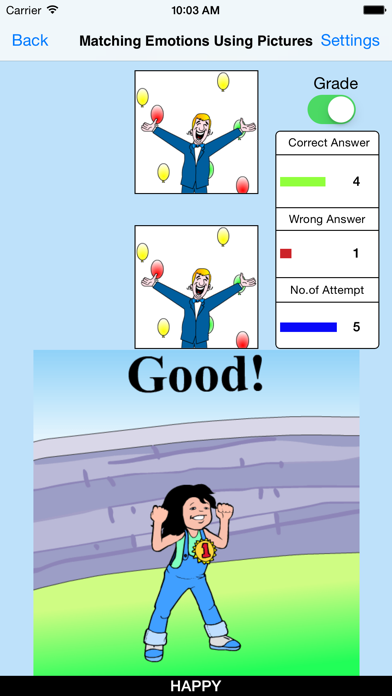
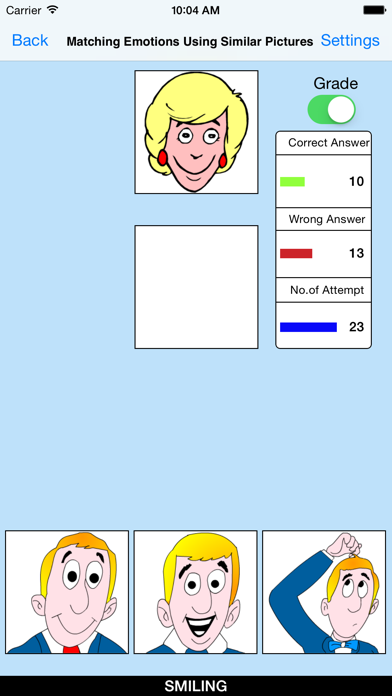
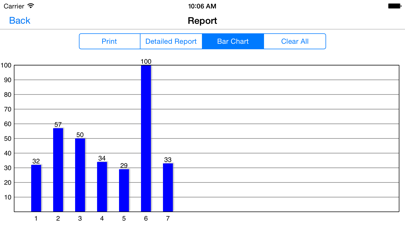
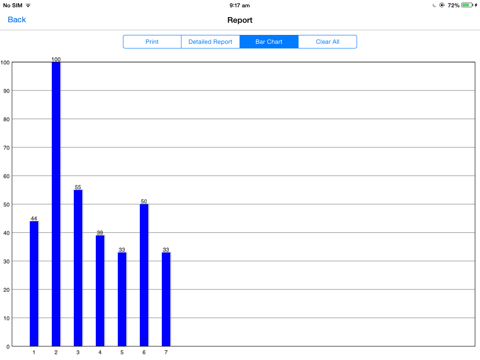
This program uses names and illustrations of emotions to help the student to learn listening, identifying, and naming skills. There are 4 sub-programs. 1. Matching Emotions Using Pictures In this app an illustration for an emotion is shown at the top of the screen. The student is asked to click on the matching emotion picture shown among others at the bottom of the screen. This program can be used by kindergarten children or learning-disabled (autistic or with other disabilities) children of various ages. 2. Matching Emotions Using Similar Pictures This program runs like “Matching Emotions Using Pictures,” but the pictures shown are similar to the emotion picture that should be matched but not identical to it. 3. Matching Emotions Using Words This program runs like “Matching Emotions Using Pictures,” but instead of pictures, words for emotions are used. The student is required to click on the correct word which represents the emotion shown on top of the screen. 4. Discriminating Emotions The student is asked to find and click on the correct emotion picture shown on the screen. Settings Level 1 One emotion picture appears at the top of the screen. One picture is shown at the bottom of the screen to be matched with the one at the top. Level 2 One emotion illustration appears at the top of the screen. Two pictures are shown at the bottom of the screen to be matched with the one at the top of the screen. Level 3 One emotion picture appears at the top of the screen. When this option is selected, three pictures are shown at the bottom of the screen to be matched with the one at the top of the screen. There is one correct choice and two distracters. Distracter The distracters are illustrations of emotions. This option is disabled for Level 1 and available for Level 2 and Level 3. Non-emotion The distracters are some items other than illustrations of emotions. This option is disabled for Level 1 and available for Level 2 and Level 3. Mixed This option is available only for Level 3. When this is selected, one distracter is an illustration of an emotion and the other distracter is something else. Command Text A short command text is visible at the bottom of the screen. Prompt If the student fails to match the correct picture within ten seconds, the program guides him/her to the correct emotion picture. Prompt with Blink This option is selected by default. If the correct emotion picture is not chosen after ten seconds, it blinks. Prompt with Label The words for the emotions appear below the pictures. Prompt with Animation If the correct emotion picture is not chosen after ten seconds, an animation appears. Congratulatory Animation This is available only for the “Training” mode. This animation runs for ten seconds. Selection All emotions are selected by default. Click on the check box to select or deselect an emotion. Select All Check this box to select all emotions. Uncheck to deselect. Training This program uses colors to train listening and matching skills. Test Here, the student can test him/herself. Report This displays results of the “Test”. The report (Holds Only 20 Records). Grade On/Off: If it is on, app will monitor correct and wrong responses by the student Correct Answer: When a student response to a question with correct answer Wrong Answer: When a student response to a question with wrong answer Number of Total Attempt: Number of times a student tried to answer questions in the app. Bar Chart: Represents the student's performance graphically. Detail Report: Test results including the grade. object identified, distracter and time taken to finish the test. Print: This will print the grade or data on the screen. Clear Data: This button erase all the data that was stored and free up the memory that data was occupying.
Latest release
What’s New
This update from Apple will improve the functionality of this app. No new features are included.
Audience growth
Ratings growth
Baseline captured. Growth appears after the crawler observes a changed rating count.
Momentum comes from crawler snapshots for the tracked storefront. “Viral growth signal” means unusually fast recent rating gains; it is an indicator, not download data.
Price tracking
Price intelligence
First snapshot captured. The trend line starts after the next crawler price observation.
- First observed Aug 27, 2026 · 9:14 AM Free
Screenshots