About this app
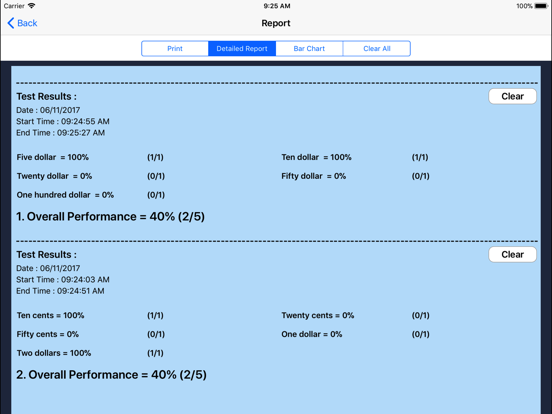
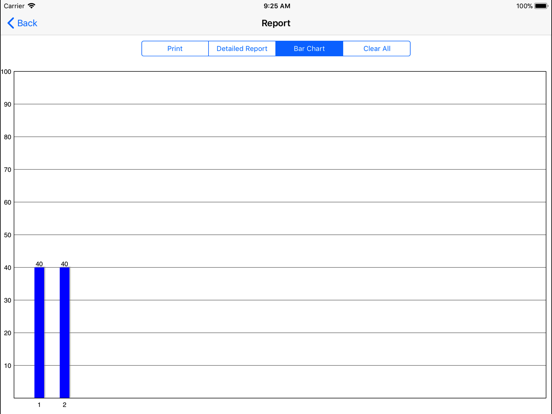
Click on “Making Change" and then click the “Enter" button to open this program. This program teaches the student about changing (converting) larger denominations of currency into smaller ones, such as breaking a dollar note into five twenty-cent or ten ten-cent or any other collections of coins that add up to the dollar. The screen has a top box showing the coin or note for which change is needed. To the right of the top box is a counter giving the value of the currency in the top box. Under the top box are more boxes in the middle of the screen with spaces for the coins or notes that the student is using to make change for the money in the top box. To the right of the middle boxes is a counter giving the value of the change in the middle boxes. At the bottom is another set of boxes with a coin or note in each box. The student clicks on these coins or notes to make change for the coin or note in the top box. Change Made The student clicks this button when he/she thinks the correct change has been placed in the boxes in the middle. Settings Training The Training mode is selected by default Test Here, the student can test him/herself. Both counters are disabled. The test results are recorded and “Report" becomes enabled. Report This displays results of the “Test". The report features are similar to those of reports used in other programs. Display the Value of the Coins or Notes is on This is the default setting. The value of the coin or note (such as “10¢" under ten-cent coin) appears under the coin or note. Display the Value of the Coins or Notes is off The value of the coin or note (such as “10¢" under ten-cent coin) will not appear under the coin or note. Command Text This option is selected by default. When this is checked, text appears at the bottom of the screen instructing the student to (for instance) “Here is five dollars. Please make change with 4 one-dollar notes and the rest in twenty-cent pieces." If not checked, the command text does not appear. Congratulatory Animation This is selected by default. When the student makes the correct change and clicks on the “Change Made" button, there will be a congratulatory animation. Click anywhere on the screen or press the space bar to stop the congratulatory animation. When not checked, the animation will not appear. Selection Here the teacher/therapist can select the coins and/or notes that the student can use to make change. By default “Select All" is checked. Select All This selects all coins and notes.
Latest release
What’s New
The current app version updated with the new age rating.
Audience growth
Ratings growth
Baseline captured. Growth appears after the crawler observes a changed rating count.
Momentum comes from crawler snapshots for the tracked storefront. “Viral growth signal” means unusually fast recent rating gains; it is an indicator, not download data.
Price tracking
Price intelligence
First snapshot captured. The trend line starts after the next crawler price observation.
- First observed Aug 27, 2026 · 9:14 AM Free
Screenshots